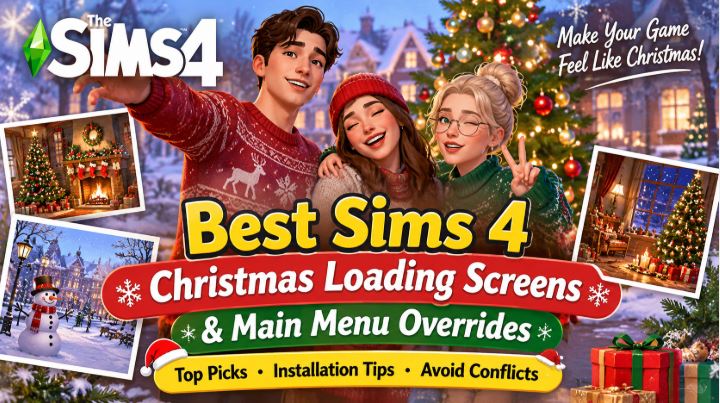
Sims 4 Christmas Loading Screens & Main Menu Overrides – Christmas Makeover Sims
Give your game a festive makeover with Sims 4 Christmas loading screens and main menu overrides. Explore downloads, installation tips, and compatibility advice. Christmas loading screens and main menu overrides are simple ways to make The Sims 4 feel more festive during the holiday season. Want to give The Sims 4 a festive Christmas makeover?
A Christmas loading screen and main menu override are two easy ways to bring holiday magic to your game. Instead of looking at the usual loading background, you can enjoy cozy Christmas decorations, glowing fairy lights, snowy windows, decorated trees, and warm winter scenes whenever you open the game.
There are several beautiful Sims 4 Christmas loading screens and main menu replacements available from custom content creators. Some focus on cozy indoor Christmas evenings, while others feature snowy forests, decorated cabins, and festive holiday scenes.
One combination worth checking out is Refreshed Main Menu: Homey Christmas for the main menu and Cozy Christmas Evening Loading Screen for the loading screen. Together, they create a warm, coordinated Christmas atmosphere.
In this guide, we’ll explore some lovely Sims 4 Christmas loading screens, main menu overrides, their features, installation instructions, and important tips to avoid conflicts between replacement files.
See Pecks, Sims 4 Christmas CC Packs for a Cozy Winterfest (Get Free) – New Trending
Best Sims 4 Christmas Main Menu Overrides
A main menu override changes the screen you see when you launch The Sims 4. It can replace the standard background with a completely different visual style.
Christmas main menu overrides are especially popular during the holiday season because they bring festive decorations and winter scenery into the game before you even start playing.
1. Refreshed Main Menu: Homey Christmas
Refreshed Main Menu: Homey Christmas is a great option if you want a cozy and festive Christmas main menu.
This replacement gives the game’s main menu a holiday-inspired appearance, with animated snowfall, drifting clouds, a decorated Christmas tree, and a snowy window view.
It also includes several useful customization options that make it more than just a visual replacement.
Main features:
- Animated snowfall for a winter atmosphere.
- Drifting clouds and snowy scenery.
- A decorated Christmas tree.
- A cozy window background.
- Adjustable family portrait sizing.
- Options to hide the family image and news panel.
- Ultrawide display support.
- An option to disable full-screen advertisements.
Why choose this override?
What makes this option interesting is the combination of festive visuals and practical menu improvements. You can enjoy the Christmas atmosphere without giving up useful menu customization.
Important compatibility note: This is a standalone main menu replacement. Don’t install it alongside the standard Refreshed Main Menu or another main menu override. Use only one main menu replacement at a time.
Download: Refreshed Main Menu: Homey Christmas
Best Sims 4 Christmas Loading Screens
Unlike a main menu override, a loading screen replacement changes the background displayed while your game loads.
If you spend a lot of time switching households, traveling between lots, or loading saved games, a Christmas loading screen can make those moments feel more festive.
Here are some Christmas-themed options worth exploring.
2. Cozy Christmas Evening Loading Screen
Cozy Christmas Evening Loading Screen is a lovely choice for players who prefer warm indoor Christmas decorations over snowy outdoor scenery.
It features cozy holiday-inspired scenes with decorated Christmas trees, fairy lights, stars, presents, candles, and festive treats.
The collection offers multiple designs and two plumbob versions, giving you some flexibility when choosing the appearance you prefer.
Main features:
- Warm and cozy Christmas scenes.
- Decorated Christmas trees.
- Glowing fairy lights.
- Festive presents and ornaments.
- Candlelit holiday details.
- Multiple loading screen designs.
- Two plumbob versions.
- Optional matching main menu and opening screen files.
Why choose it?
This loading screen is a good match for players who enjoy cozy Christmas interiors, family celebrations, and warm holiday decorations.
You can also explore its optional matching files if you want a more coordinated festive setup.
Download: Cozy Christmas Loading Screens – MustHaveMods
3. Cozy Christmas Overrides – Loading Screens
If you prefer having a few Christmas designs to choose from, Cozy Christmas Overrides is another option worth checking out.
This collection includes three loading screen versions featuring traditional holiday decorations such as Christmas trees, ornaments, and stockings.
The designs are suitable for players who want a recognizable Christmas atmosphere without changing the entire game’s appearance.
Main features:
- Three Christmas loading screen versions.
- Holiday tree decorations.
- Christmas ornaments.
- Festive stockings.
- Traditional holiday-inspired visuals.
Installation tip: Don’t install all three versions together unless the creator specifically explains that they are designed to work together. For ordinary loading screen replacements, keep only one version installed.
Download: Sims 4 Christmas CC
4. Christmas Night Set
The Christmas Night Set is worth exploring if you want your loading screen and main menu to share a similar holiday theme.
Instead of combining completely different designs, a coordinated set can help create a more consistent appearance throughout the game.
This option includes a Christmas-themed loading screen and main menu replacement.
Why consider this set?
It’s a useful choice for players who prefer a matching Christmas look rather than mixing several unrelated designs.
Before downloading, check the creator’s instructions to confirm which files are included and whether any additional requirements apply.
Download: Christmas Night Set
5. Holiday Opening Screen Override by Serena
Your game’s opening screen is different from its main menu and loading screen. It appears during the game’s startup process.
The Holiday Opening Screen Override by Serena is an option for players who want to extend their Christmas theme to this part of the game as well.
It’s worth considering if you want a more complete holiday makeover.
Important: An opening screen replacement is a separate override category. Keep only one opening screen override installed at a time.
Download: Christmas Loading Screens and Main Menu Replacements – The Sims Tree
6. Winter Loading Screen and Main Menu Set
If you prefer snowy landscapes and winter scenery, this set is another option to explore.
It includes different winter-inspired backgrounds featuring snowy cabins and forest scenes.
The designs are a good fit for players who enjoy a peaceful winter atmosphere rather than traditional indoor Christmas decorations.
What to check before downloading:
- Available background versions.
- Included main menu replacement files.
- Whether a separate minimalist menu clutter-removal file is required.
- Installation order and creator instructions.
Some versions may need an additional clutter-removal package to achieve the appearance shown in the preview.
Download: Sims 4 Winter Loading Screens
Christmas Main Menu Override vs. Loading Screen: What’s the Difference?
If you’re new to Sims 4 custom content, these two terms can be confusing.
Although both change the game’s appearance, they affect different screens.
| Feature | Main Menu Override | Loading Screen Replacement |
|---|---|---|
| Changes the main menu | Yes | No |
| Changes loading backgrounds | No | Yes |
| Appears when launching the game | Yes, at the menu | During loading |
| Can use Christmas designs | Yes | Yes |
| Can be combined with the other category | Usually yes | Usually yes |
You can generally use one compatible main menu override and one loading screen replacement together.
However, installing two replacements for the same screen can cause conflicts.
How to Install Sims 4 Christmas Loading Screens and Main Menu Overrides
Installing Christmas loading screens and menu replacements is usually simple. Most downloads come as .package files that you place in your Sims 4 Mods folder.
Follow these steps to get started.
Step 1: Download Your Christmas Override
Visit the creator’s download page and choose your preferred Christmas loading screen or main menu replacement.
Read the installation instructions before downloading. Some files may include optional extras or additional requirements.
Step 2: Find Your Sims 4 Mods Folder
Open the following location on your computer:
Documents/Electronic Arts/The Sims 4/Mods
If you use Windows, you can open File Explorer and navigate to your Documents folder.
If your game uses a different Documents location, find the active Sims 4 user folder instead.
Step 3: Add the Downloaded Files
Extract the downloaded ZIP or RAR archive if necessary.
Move the .package files into your Mods folder.
For example:
Documents/Electronic Arts/The Sims 4/Mods/Christmas Overrides
Keeping your Christmas CC in its own folder makes it easier to find and remove later.
Step 4: Enable Custom Content and Mods
Open The Sims 4 and follow these steps:
- Select Game Options.
- Open the Other tab.
- Enable Custom Content and Mods.
- Save your settings.
- Restart the game.
Some replacement files may not work correctly until you restart the game.
Step 5: Check Your Christmas Screens
Launch The Sims 4 and check whether your new main menu or loading screen appears.
If the original screen still appears, close the game and double-check that the files are in the correct Mods folder.
Important Tips to Avoid Sims 4 Override Conflicts
This is one of the most important things to understand before installing replacement files.
Main menu overrides, loading screens, and opening screens are separate categories. You can often combine one file from each category, but multiple replacements targeting the same screen may conflict.
Follow these guidelines:
- Main menu: Keep only one main menu override.
- Loading screen: Keep only one loading screen replacement.
- Opening screen: Keep only one opening screen replacement.
- Optional files: Install additional files only when the creator explains that they’re required or compatible.
- Menu clutter removal: Check whether your chosen menu replacement requires a separate file.
For example, you can pair Homey Christmas with Cozy Christmas Evening because one changes the main menu and the other changes the loading screen.
However, don’t combine Homey Christmas with another main menu override.
What If Your Christmas Loading Screen Doesn’t Work?
If your new loading screen or main menu doesn’t appear, try these troubleshooting steps:
- Make sure the
.packagefile is inside the correct Mods folder. - Check that Custom Content and Mods are enabled.
- Restart The Sims 4.
- Remove duplicate loading screen or menu replacements.
- Check whether the download supports your current game version.
- Follow any additional instructions from the creator.
You can also delete the localthumbcache.package file from your Sims 4 user folder after changing or removing mods. The game will generate a fresh cache when it starts again.
If the problem continues, temporarily remove the new override and test the game without it.
My Recommended Sims 4 Christmas Setup
If you want a cozy Christmas makeover without creating unnecessary conflicts, I’d start with this combination:
| Screen | Recommended download |
|---|---|
| Main menu | Refreshed Main Menu: Homey Christmas |
| Loading screen | Cozy Christmas Evening Loading Screen |
| Opening screen | Optional matching opening screen, if compatible |
This combination gives you a festive main menu and a warm Christmas loading screen without using multiple replacements for the same screen.
If you prefer snowy outdoor scenery instead, consider the Winter Loading Screen and Main Menu Set.
The important thing is to choose replacements based on the screen they affect, not simply how many Christmas files you can install.
Frequently Asked Questions
1. How do I get a Christmas loading screen in The Sims 4?
Download a Christmas loading screen replacement from a trusted CC creator. Extract the file if necessary, place the .package file in your Sims 4 Mods folder, enable Custom Content and Mods, and restart the game.
2. Can I use a Christmas main menu override and loading screen together?
Yes. You can generally use one compatible main menu override and one loading screen replacement together because they affect different parts of the game.
3. Can I install multiple Sims 4 loading screens?
It’s best to install only one loading screen replacement at a time. Multiple files targeting the same loading screen may conflict or prevent the intended design from appearing.
4. Does Homey Christmas require the standard Refreshed Main Menu?
No. Homey Christmas is intended as a standalone main menu override. Don’t combine it with the standard Refreshed Main Menu or another menu replacement.
5. Are Sims 4 Christmas loading screens free?
Many Sims 4 creators share their loading screen replacements for free. However, some creators may offer early access or optional paid downloads. Always check the creator’s download page for the latest terms.
6. Do Christmas loading screens require The Sims 4 Seasons?
Not necessarily. Many loading screen replacements are visual overrides and don’t require the Seasons expansion. However, always check the creator’s requirements before downloading.
7. Why is my Sims 4 Christmas loading screen not showing?
The most common reasons include an incorrect Mods folder, disabled custom content settings, duplicate loading screen files, or an outdated replacement. Check these issues and restart your game.
8. Can I use a Christmas opening screen with a Christmas main menu?
Yes, provided the files are compatible. Opening screen and main menu replacements target different parts of the game’s interface, but you should still follow each creator’s instructions.
Final Thoughts
Whether you prefer the cozy decorations of Cozy Christmas Evening, the animated snowfall of Homey Christmas, or the snowy scenery of a winter-themed set, there are plenty of options to explore.
My recommendation is to start with one main menu replacement and one loading screen replacement. This gives you a coordinated Christmas look without filling your Mods folder with conflicting files.
And before installing any new override, always check its compatibility and creator instructions. A little organization can save you a lot of troubleshooting later.